
1. INTRODUCTION
The Heatit WiFi Panel Heater combines modern design with efficient, comfortable heating. Easily connect it to your Wi-Fi network and take control with the "MyHeatit" App. Turn the heater on or off, adjust the temperature, change heating modes, and monitor energy consumption directly from your smartphone – even when you’re away. You can also control the heater using the physical buttons on top or integrate it with other systems through its open API over Wi-Fi.
Heatit WiFi Panel Heater has 2 modes; Heat and Eco.
Heatit WiFi Panel Heater has a modern, slim design and is aesthetically pleasing. Produced with the front in either steel or glass. It is easy to install and mount on the wall with the supplied bracket. The panel heater can also be mounted on metal feet, sold separately (Art. no. 54 305 12). The panel heater has a built-in tip-over protection that automatically disconnects the power if it tips over.
Heatit WiFi Panel Heater is a low-temperature panel heater with a maximum surface temperature of 58°C, designed for environments where safety and comfort are important. The low surface temperature makes it particularly suitable for kindergartens, schools and other areas where children and many people are present.
With an IP24 rating, the Heatit WiFi Panel Heater is suitable for use in bathrooms and wet rooms. The heater combines safe and comfortable heating with a modern design and smart control via WiFi.
The output power can be adjusted from the menu or from the app. It has child lock and open window detection. The device has an open API and supports Amazon Alexa and Google Home.
The installer can configure the device via Bluetooth. After the devicve is set up, the installer can add the property to the customer. The customer can then transfer the device to their local Wi-Fi network.
Heatit WiFi Panel Heater has active power metering and it gives you real time information about your power consumption.
Heatit WiFi Panel Heaters come in two versions: traditional convectors and skirting panel heaters. Traditional convectors are available in steel or glass, while skirting panel heaters are offered in steel only. The heaters are available in outputs from 400W up to 1500W and in white or black, depending on the model.
2. SAFETY ADVICE
READ THIS NOTICE CAREFULLY BEFORE OPERATING THE APPLIANCE.
This appliance can be used by children aged from 8 years and above and persons with reduced physical, sensory or mental capabilities or lack of experience and knowledge if they have been given supervision or instruction concerning use of the appliance in a safe way and understand the hazards involved. Children shall not play with the appliance. Cleaning and user maintenance shall not be made by children without supervision.
Children of less than 3 years should be kept away unless continuously supervised.
Children aged from 3 years and less than 8 years shall only switch on/off the appliance provided that it has been placed or installed in its intended normal operating position and they have been given supervision or instruction concerning use of the appliance in a safe way and understand the hazards involved. Children aged from 3 years and less than 8 years shall not plug in, regulate and clean the appliance or perform user maintenance.
WARNING / CAUTION
Warning: this product shall be installed in Volume 2 only, according to national wiring rules.
Note: The drawing below is for reference only. We suggest that you contact a professional electrician for assistance.
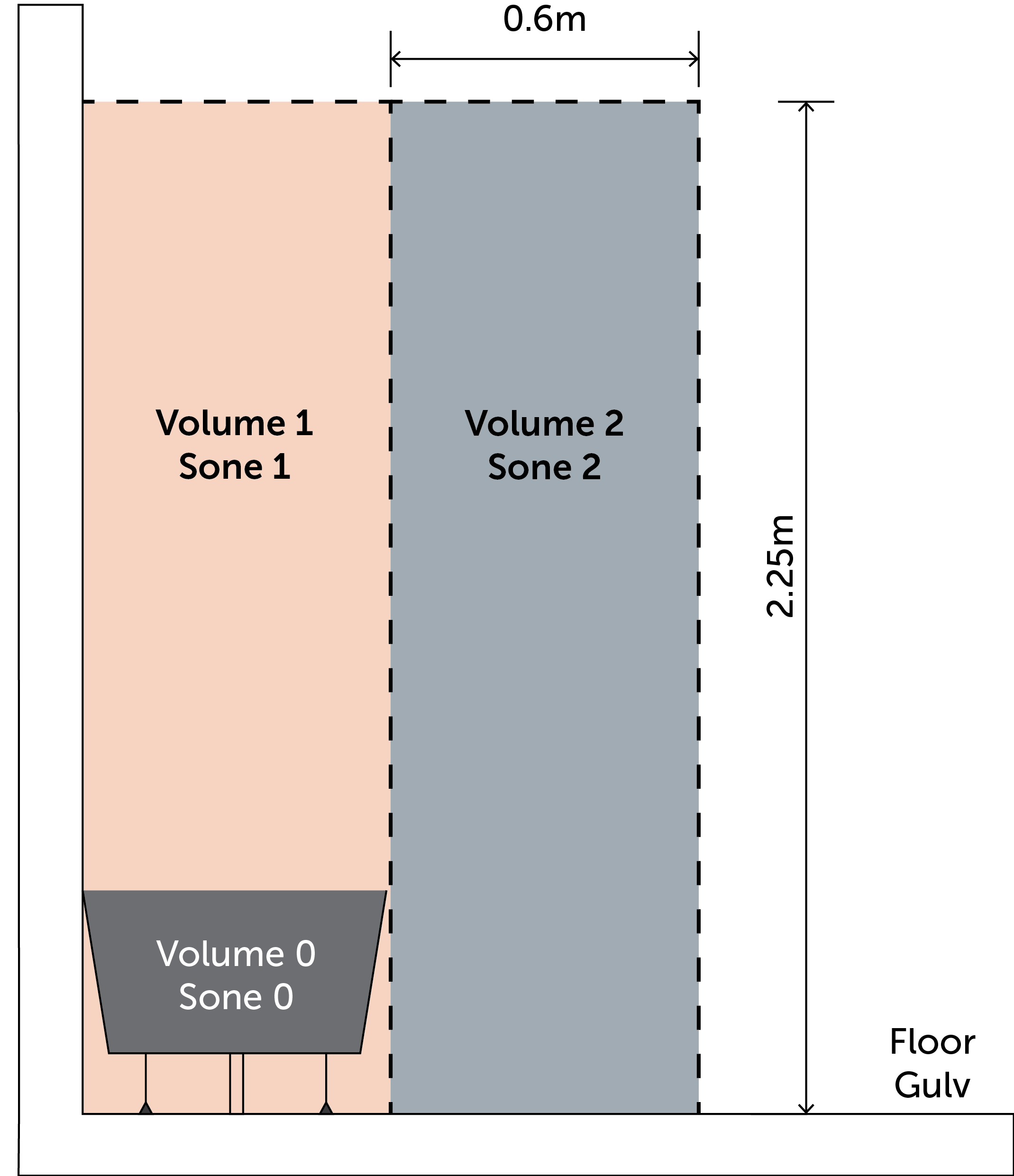
3. INSTALLATION
Make sure that the distance from walls and objects is respected.
WARNING
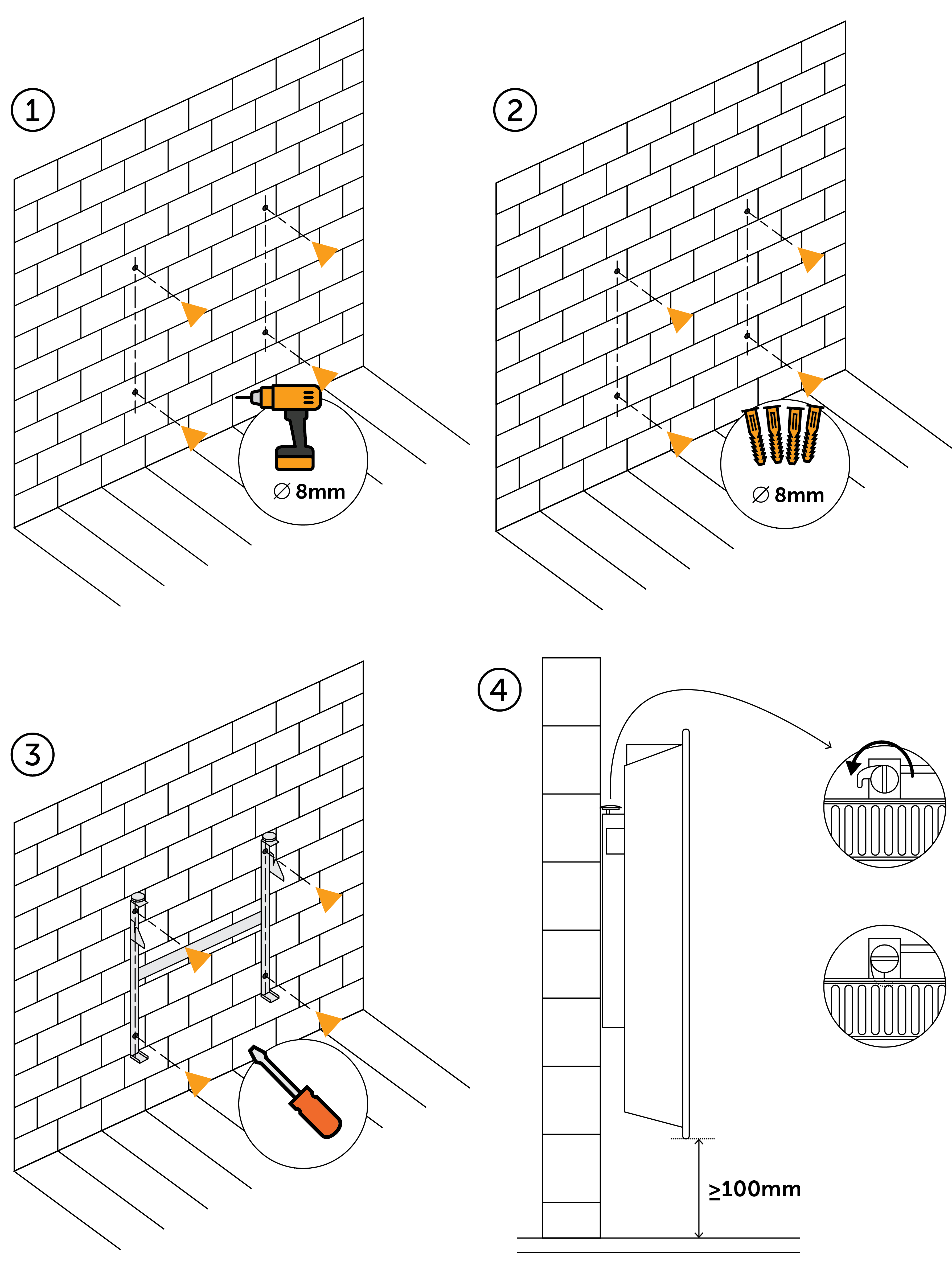
4. THERMOSTAT CONTROLS
| Icon | Name | Description |
|---|---|---|
 |
Up | Next. Increase set temperature. |
 |
Middle | Menu confirm. Menu enable. |
 |
Down | Previous. Decrease set temperature. |
5. LOCAL SETTINGS MENU
To enter the settings menu, hold the Center button for 5 seconds. The display will show "OFF".
You are now in the settings menu.
While in the settings menu, "SET" will be shown in the bottom right of the display. You can now scroll up and down using the Up and Down buttons.
Some options have submenus. To navigate the submenus, press the Center button once to enter or exit the submenu. Press the Up and Down buttons to find your desired value and hold the Center button for 2 seconds to confirm your selection. "STOR" will appear to indicate settings are stored.
6. STARTUP
After powering up the device for the first time, all parameters will have default settings.
7. WI-FI NETWORK SELECTION
The device supports 2.4GHz networks only.
8. ADD/REMOVE
Please read this before installation
Upon connecting the device to power, it will automatically enter add mode for a duration of 60 minutes. During this time the device can be added to the "MyHeatit" App without starting add mode locally on the device.
To remove a device, find the device in the "MyHeatit" App and choose "Delete this device". If this is not possible, perform a "Factory reset".
8.1. WI-FI AND BLUETOOTH
Manual add mode is indicated on the device by rotating LED segments in the display. It indicates this for 90 seconds until a timeout occurs, or until the device has been added to the network. Add mode may also be cancelled by performing the same procedure as for starting add mode.
To include the device in the "MyHeatit" App, using either Wi-Fi or Bluetooth.
When a device is added to Bluetooth it is not accessible from the internet. You need to be within Bluetooth range of the device to control it.
The device is now ready for use with default settings.
NB! When the device is removed from the "MyHeatit" App, the parameters are reset. If inclusion fails, please perform a "Factory reset".
Automatic add mode is not shown but is active for 60 minutes after power is applied if the device is not already included.
9. QR CODE INCLUSION
The QR code simplifies the inclusion process, allowing the device to be added quickly and easily by scanning the code. The QR code is located on the product.
10. FACTORY RESET
Enter the menu by holding the center button for about 5 seconds, navigate in the menu with the "-" button till you see "FACT". Press the center button until you see "-- --" blinking in the display, then hold for about 5 seconds to perform a reset. You may also initiate a reset by holding the up and center buttons for 60 seconds.
When either of these procedures has been performed, the thermostat will perform a complete factory reset. The device will display "RES" for 5 seconds while performing a factory reset. When "RES" is no longer displayed, the thermostat has been reset.
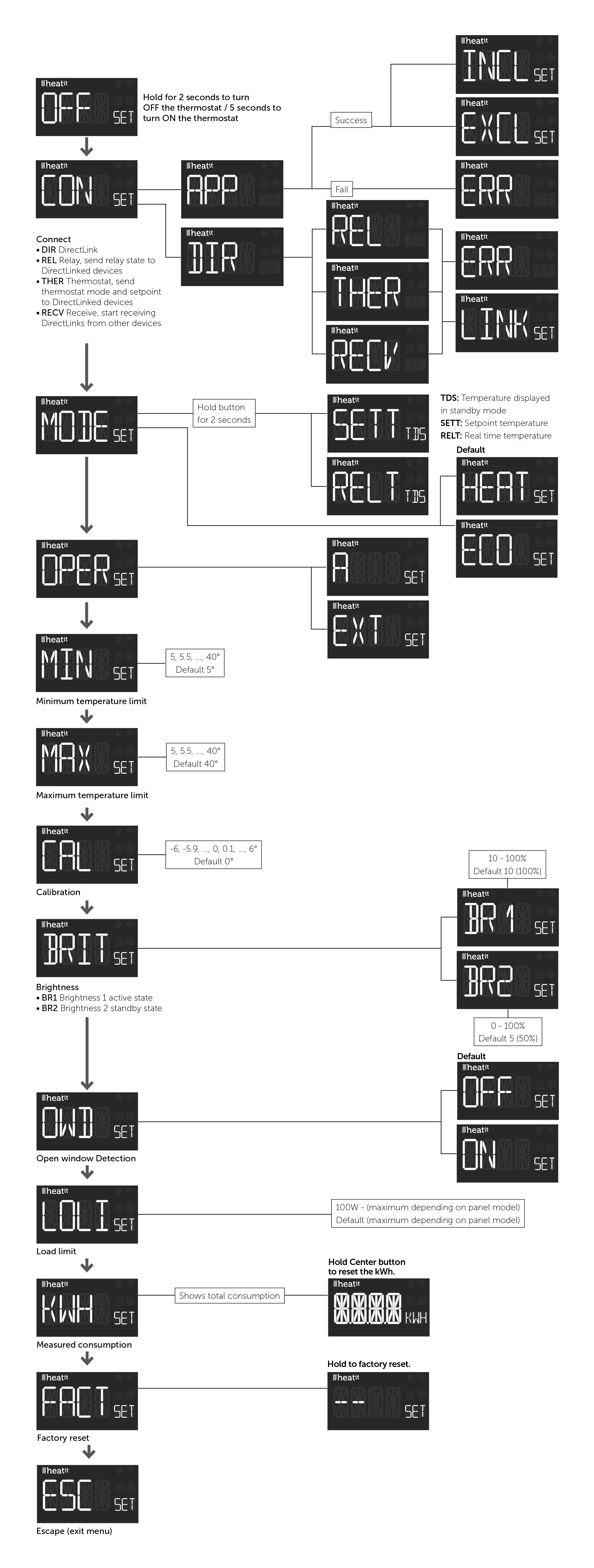
11. DISPLAY MENU STRUCTURE
See flowchart at the end of this manual.
12. STANDBY AND MAIN SCREEN
When the thermostat remains untouched for a while, it will automatically go to the standby screen. The standby will by default show the setpoint temperature.
13. TEMPERATURE SHOWN IN DISPLAY
During standby, the display shows the setpoint by default. You can change what is shown by choosing either measured temperature "RELT", or the setpoint "SETT".
You select "SETT" or "RELT" via holding down the center button for 2 seconds on the "MODE" menu choice, or by adjusting Parameter "Temperature display".
| Description | Menu Structure |
|---|---|
| Temperature display | Center button 2 seconds on MODE |
14. MIN/MAX TEMPERATURES
The thermostat allows you to set a minimum and maximum temperature for the sensor.
You set the "MIN" or "MAX" values via the menu option, or by setting Parameter "Internal sensor min temp limit" and Parameter "Internal sensor max temp limit".
| Description | Menu Structure |
|---|---|
| Min temperature limit | MIN |
| Max temperature limit | MAX |
15. CALIBRATION
If the temperature sensor readout is inaccurate, you can correct it by up to ±6°C. You calibrate using the CAL menu option or by adjusting Parameter "Calibration". The app and thermostat then show the calibrated value.
| Description | Menu Structure |
|---|---|
| Internal sensor | CAL |
16. BRIGHTNESS
The display brightness for active and standby states is managed separately. You can set the values from the menu using the menu options "BR1" for active display brightness, and "BR2" for standby display brightness under the "BRIT" menu, or by setting Parameters "Active display brightness" and "Standby display brightness". To turn off the display in standby mode, set the "standby display brightness" to 0.
| Description | Menu Structure |
|---|---|
| Active display brightness | BR1 |
| Standby display brightness | BR2 |
17. OPEN WINDOW DETECTION
Open Window Detection (OWD) is a function which will reduce the thermostat setpoint on detection of an open window. This happens when the temperature sensor registers a rapid temperature drop.
When OWD is activated, the setpoint is reduced to 5°C in order not to waste energy. OWD will automatically be cancelled if it has been active for more than 1 hour, or if the temperature increases by 3°C. OWD can also be cancelled manually by increasing/decreasing the setpoint with the Left and Right buttons.
You enable or disable "OWD" via the OWD menu option, or by setting Parameter "Open window detection".
| Description/Name | Menu Structure |
|---|---|
| Open window detection | OWD |
18. LOAD LIMIT
The Load Limit (LoLi) parameter can limit the power consumption of the device. This allows you to reduce the wattage the device consumes to better suit your heating needs. The load limit parameter uses increments of 100W per step.
19. KWH VALUE IN MENU
The device supports power metering to give insight into the power consumption of the device. The total consumption of the device can be seen from the "KWH" menu option. Enter the "KWH" submenu by pressing the center button once to see the total consumption, hold the center button for 2 seconds within the "KWH" submenu to reset it.
| Description | Menu Structure |
|---|---|
| Total consumption in kWh | KWH |
20. DISPLAY ICONS
| Icon | Description |
|---|---|
 |
This icon will be displayed while the device is in Heat or ECO and is currently heating. |
 |
This icon shows the current signal strength. |
 |
This icon shows when it has an active Bluetooth connection. |
21. CHILD LOCK
Child lock prevents local button operations on the display.
Hold the "-" and "+" buttons for 10 seconds. When enabled, "LOCK" appears on the display; when disabled, "OPEN" is shown.
| Description/Name | Menu Structure |
|---|---|
| Child lock | "-" and "+" buttons 10 seconds |
22. DISABLE BUTTONS
This function can be used to either fully lock the buttons, or to lock the menu.
When Lock Menu is enabled, it has to be disabled from the App or by factory resetting the device from the buttons.
23. API
The device features an Open API, enabling integration and remote control over the internet without requiring the use of the "MyHeatit" App. This means the device can be integrated into any system capable of sending and receiving data through an API, allowing developers to build custom solutions and automate interactions using standard HTTP requests.
24. CONFIGURATION PARAMETERS
Heatit products are supposed to work out of the box after inclusion. Some device configuration may, however, alter the functionality to better serve user needs or unlock further enhanced features.
The complete list of parameters can be found on the Heatit Document Center on the relevant device.
25. INDICATOR
The device has an indicator function that will flash the display. This can be used while including to identify a device, and allow for it to be linked to the correct room within the "MyHeatit" App.
26. FIRMWARE UPDATE - OTA
In order to update a Wi-Fi product using the integrated OTA function, the product must be added to the "MyHeatit" App using Wi-Fi, and the product must have access to the Internet.
Open the settings for the device you want to update and press the "Update Firmware" button. This will check if a newer version is available, if there is one, it will be downloaded and installed.
27. SAFETY FEATURES
The device has safety features to ensure safe operation and warn the user of any faults/unexpected behavior.
27.1. OVERHEATING
The device features internal temperature sensors that detect overheating. It warns the user and turns off the output to prevent any damage.
When overheating is detected, the device will:
27.2. SENSOR FAILURE
The device has the ability to detect when the sensor is broken or otherwise defective.
When the device detects the sensor error, the device will:
To clear the sensor error the device has to be disconnected from the mains. If the fault persists after reconnecting, contact support.
27.3. TIPOVER PROTECTION
The device has the ability to detect when the device has fallen over.
When the device detects tipover, the device will:
To clear the error the device has to be righted. If the fault persists after reconnecting, contact support.
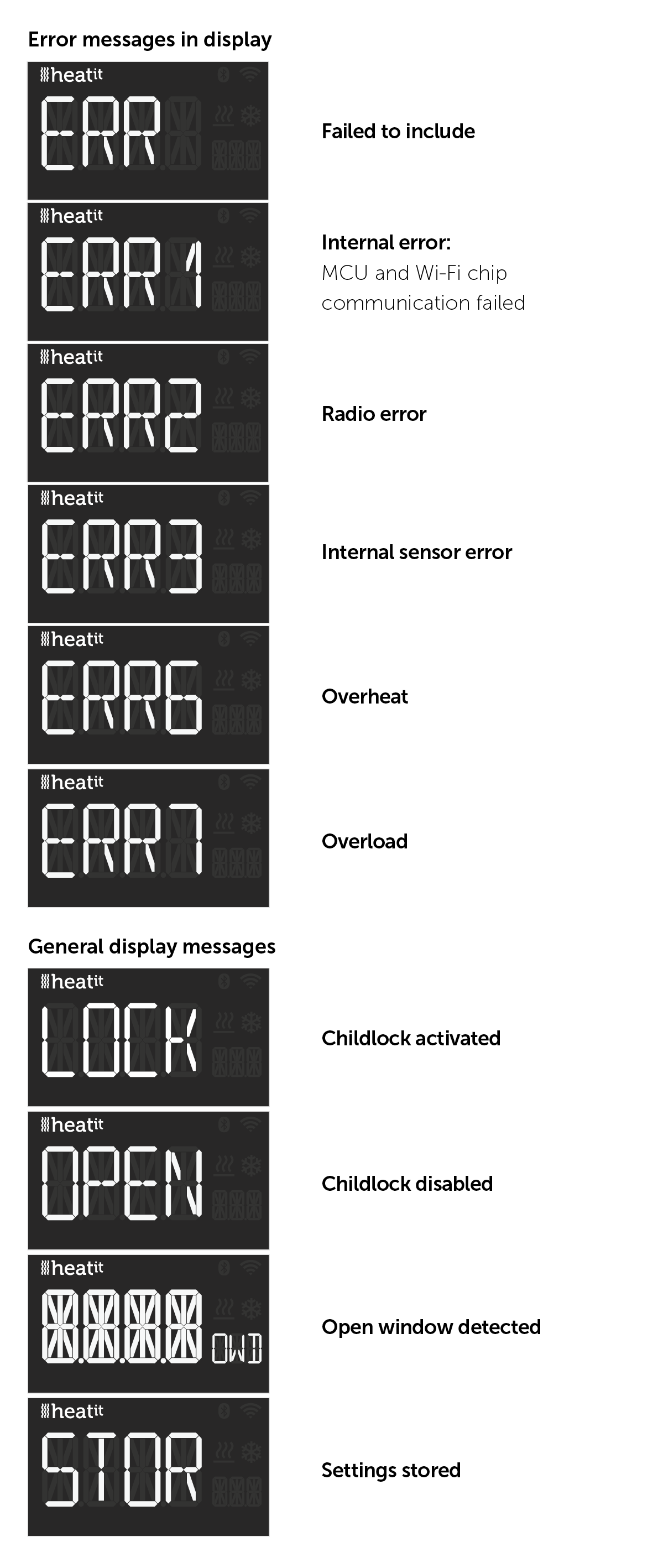
28. ERROR CODES
| Code | Error | Description |
|---|---|---|
| Err | Adding fail | See chapter Add/Remove. |
| Err1 | Internal error | Most probably a faulty unit. Contact support. |
| Err2 | WiFi-BLE error | Most probably a faulty unit. Contact support. |
| Err3 | Internal error | Most probably a faulty unit. Contact support. |
| Err6 | Overheating | Overheat protection triggered. Contact your electrician. |
If you encounter an error code, try repowering the device to restart it. If the issue persists, it is recommended to contact an electrician or support for further assistance.
29. CHART - DISPLAY MENU STRUCTURE
29.1. ERROR AND GENERAL MESSAGES IN THE DISPLAY
30. PRODUCT INFO
| Property | Value |
|---|---|
| Protocol | Wi-Fi (2.4GHz)/BLE |
| Rated voltage | 230VAC 50Hz |
| Ambient temperature | 5°C to 40°C |
| Regulation temperature | 5°C to 40°C |
| Storage temperature | -30°C to 70°C |
| Hysteresis | 0.3°C to 3.0°C (default 0.5°C) |
| Humidity | 10% to 85% RH |
| IP Code | IP24 |
| Approvals | CE (Link) |
| Max Surface Temperature | 58°C |
| Power cord | 1.3 m |
Hereby, Heatit Controls AS, declares that this device is in compliance with the essential requirements and other relevant provisions of Directive 2014/53/EU.
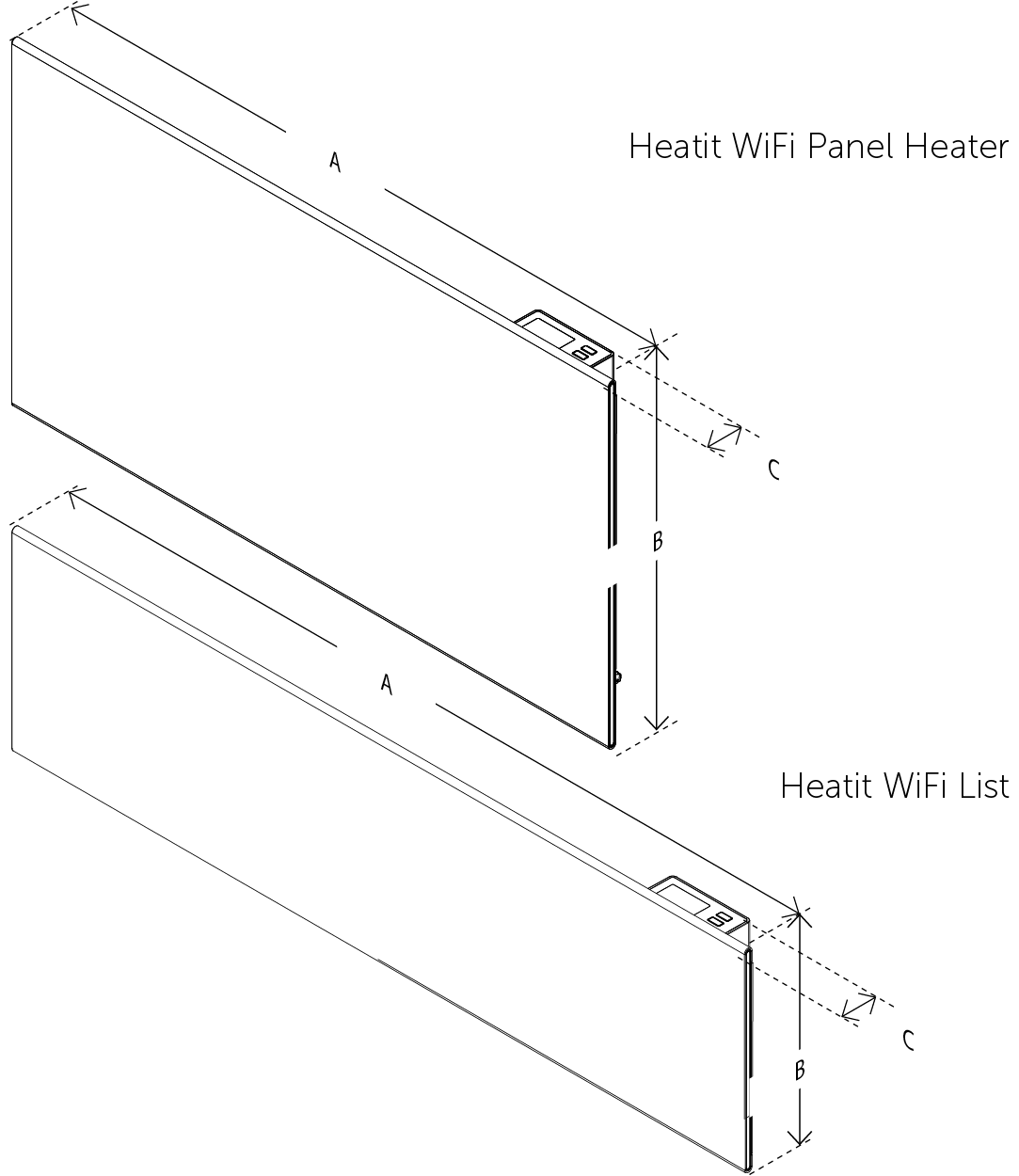
| Article no. | Product name | Effect | Product length (A) | Product Width (B) | Product height/diameter (C) | Product net weight |
|---|---|---|---|---|---|---|
| 5430474 5430481 |
Heatit WiFi Panel Heater 400W White / Black | 400 W | 440mm | 350mm | 65mm | 2700g |
| 5430475 5430483 |
Heatit WiFi Panel Heater 600W White / Black | 600 W | 500mm | 430mm | 65mm | 3350g |
| 5430476 5430485 |
Heatit WiFi Panel Heater 800W White / Black | 800 W | 630mm | 430mm | 65mm | 4100g |
| 5430477 5430487 |
Heatit WiFi Panel Heater 1000W White / Black | 1000 W | 800mm | 430mm | 65mm | 5350g |
| 5430438 5430469 |
Heatit WiFi Panel Heater 1500W Black / White | 1500 W | 1000mm | 430mm | 65mm | 6400g |
| 5430436 5430437 |
Heatit WiFi List 750W Black / Panel List 750W White | 750 W | 800mm | 255mm | 65mm | 3350g |
| 5430479 5430489 |
Heatit WiFi List 1000W White / Black | 1000 W | 970mm | 255mm | 65mm | 4000g |
| 5430500 5430507 |
Heatit WiFi Panel Heater Glass 400W White / Black | 400 W | 460mm | 350mm | 60mm | 3450g |
| 5430501 5430508 |
Heatit WiFi Panel Heater Glass 600W White / Black | 600 W | 520mm | 425mm | 60mm | 4550g |
| 5430502 5430509 |
Heatit WiFi Panel Heater Glass 800W White / Black | 800 W | 650mm | 425mm | 60mm | 5500g |
| 5430503 5430511 |
Heatit WiFi Panel Heater Glass 1000W White / Black | 1000 W | 820mm | 425mm | 60mm | 6750g |
| 5430504 5430510 |
Heatit WiFi Panel Heater Glass 1500W White / Black | 1500 W | 1020mm | 425mm | 60mm | 8500g |
Due to factors such as voltage, frequency, power factor, temperature, and the heating element, the panel's power output may vary by -10% to +5%.
| ACTUAL VALUE (W) | -10% (W) | +5% (W) |
|---|---|---|
| 400 | 360 | 420 |
| 600 | 540 | 630 |
| 800 | 720 | 840 |
| 1000 | 900 | 1050 |
| 1200 | 1080 | 1260 |
| 1500 | 1350 | 1575 |
31. CLEANING AND MAINTENANCE
32. DISCLAIMER
Do not dispose of electrical appliances as unsorted municipal waste, use separate collection facilities. To prevent possible harm to the environment or human health from uncontrolled waste disposal, recycle it responsibly to promote the sustainable reuse of material resources. To return your used device, please use the return and collection systems or contact the retailer where the product was purchased. They can take this product for environmentally safe recycling.
We develop and design our products in accordance with our strict quality requirements (ISO 9001) and environmental requirements (ISO 14001). All electrical installations must be carried out by an authorized electrical installer. The product must be installed in accordance with our installer's manual and national building codes. Any wrongful installation, misuse, damage of the product, is not covered under warranty. Updated documentation is available at www.heatit.com and/or documents.heatit.com. Heatit Controls AS cannot be held liable for any type of errors or omissions in our product information. Product specifications may change without further notice.
Downtime related to the App or cloud/service platform is not covered by the warranty.
33. COMPANY INFO


Heatit Controls AS · Mattisrudsvingen 19, 2827 HUNNDALEN, NORWAY
Phone: +47 61 18 77 77 · post@heatit.com · heatit.com
©2026